Connecting AI providers
Bring your own API keys to connect OpenAI, Anthropic, and Google Gemini.
Chathouse uses a Bring Your Own Key (BYOK) approach — you connect directly to AI providers using your own API keys. There's no subscription, no middleman, and no markup. You pay only for what you use at each provider's standard API rates.
Supported providers
| Provider | Models | Get an API key |
|---|---|---|
| OpenAI | GPT-4o, GPT-4, o1, o3, and more | platform.openai.com/api-keys |
| Anthropic | Claude Sonnet, Opus, Haiku, and more | console.anthropic.com/settings/keys |
| Gemini 2.5 Pro, Flash, and more | aistudio.google.com/app/apikey |
Adding an API key
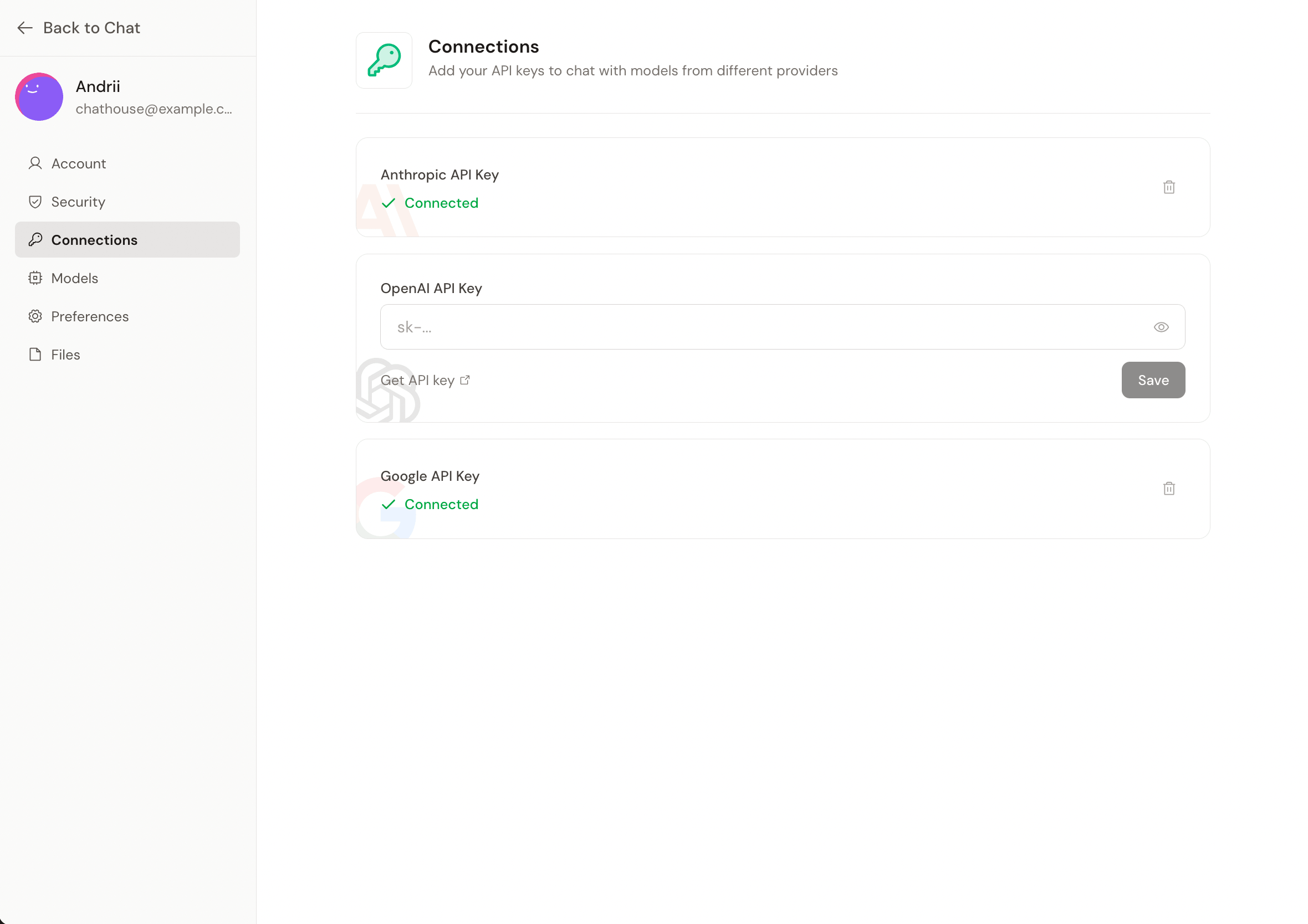
Navigate to Settings > Connections. You'll see a card for each provider.
Get your API key
Click the Get API key link on the provider card to open the provider's key management page in a new tab. Create or copy an API key from there.
Paste and save
Back in Chathouse, paste your API key into the input field and click Save. The key format varies by provider:
- OpenAI — starts with
sk-... - Anthropic — starts with
sk-ant-... - Google — starts with
AIza...
Models are fetched automatically
After saving a key, Chathouse automatically fetches the list of available models from that provider. Head to Settings > Models to enable or disable specific models.
API keys are encrypted at rest using AES encryption derived from your instance's
SECRET_KEY_BASE. They are never stored in plaintext.
Removing an API key
To disconnect a provider, click the trash icon on the provider card in Settings > Connections. This deletes the stored key — the provider's models will no longer be available in the chat model selector.
Security
Your API keys never leave your server. They're encrypted before being written to the database and only decrypted in-memory when making requests to the provider's API. If you rotate your SECRET_KEY_BASE, all stored keys will need to be re-entered.