Sharing conversations
Share your AI conversations via public links with granular control over what's visible.
Chathouse lets you share any conversation via a unique public link. Shared chats can be viewed by anyone with the link — no account required.
Creating a share link
Open a conversation and click the share icon in the top-right corner of the chat. This opens the sharing dialog.
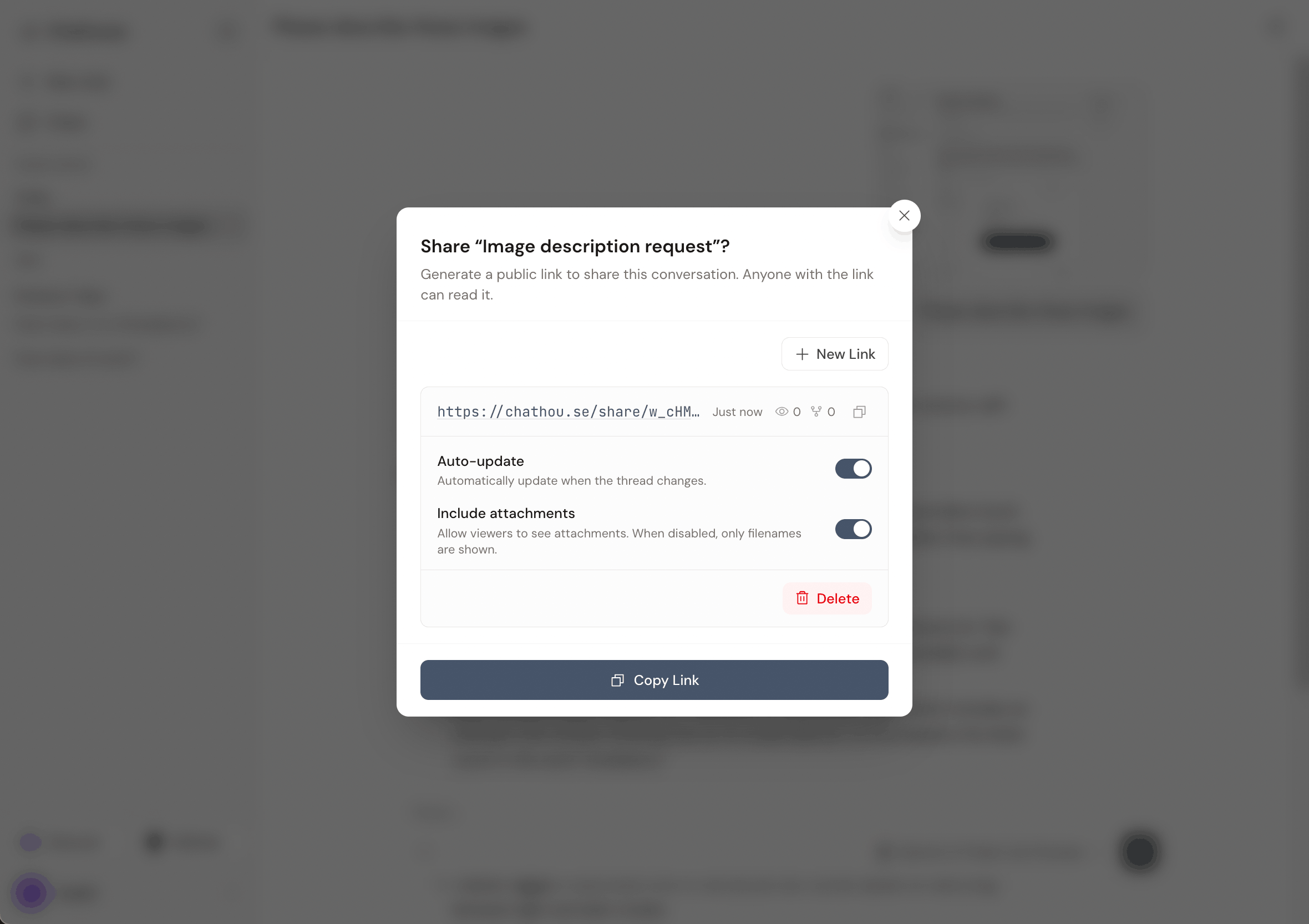
Click New Link to generate a public URL. You can create multiple share links for the same conversation — each link is independent and can be configured separately.
Share link options
Each share link has two toggles:
Auto-update
When enabled, the shared page will automatically reflect new messages as you continue the conversation. When disabled, the shared page is frozen at the point in time when you turned it off — viewers will only see messages up to that moment.
This is useful when you want to share a specific exchange without including follow-up messages.
Include attachments
When enabled, file attachments in the conversation are visible to viewers. When disabled, viewers will only see the filenames — the actual files won't be accessible.
Viewing shared chats
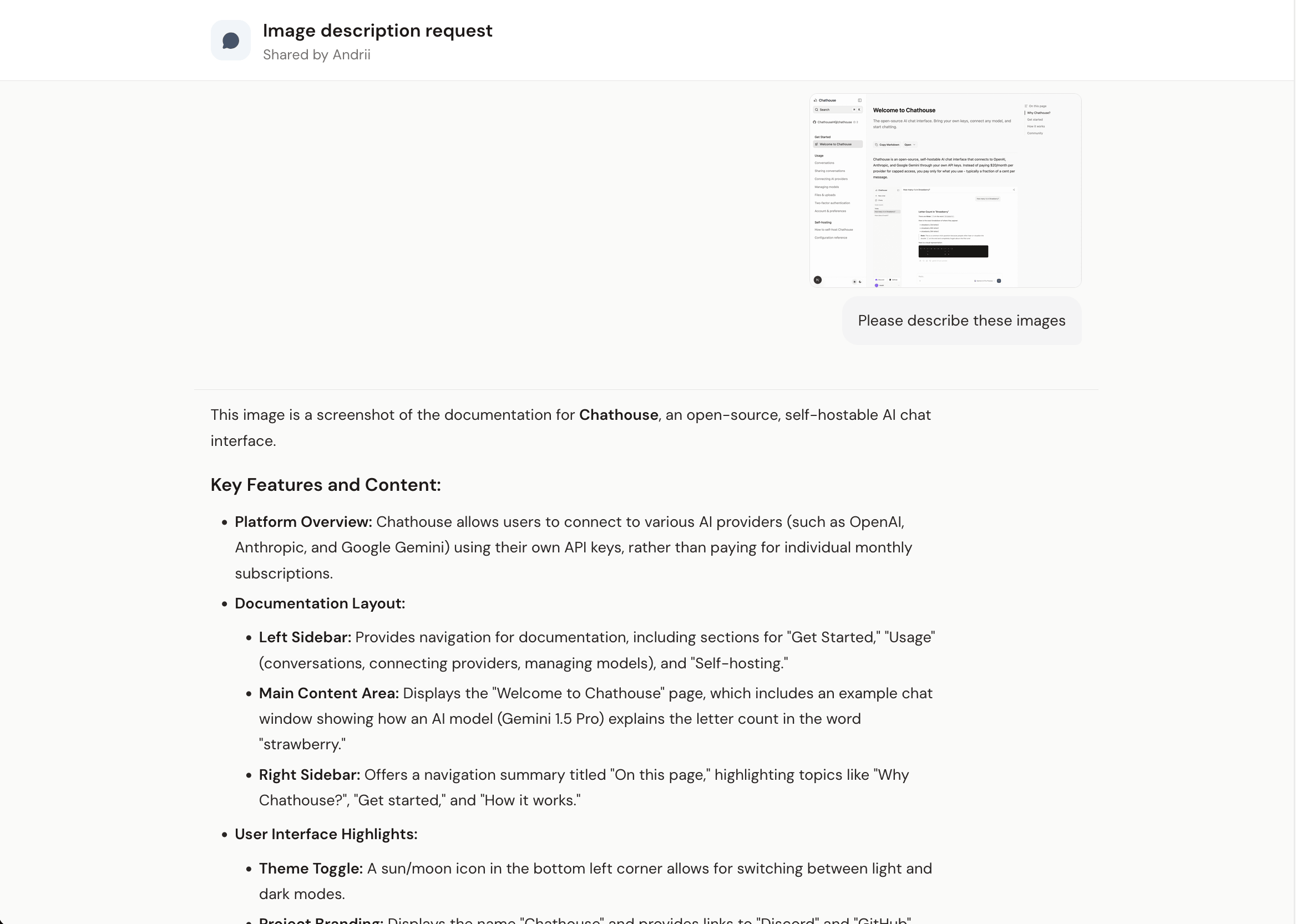
Shared chats are accessible at /share/:shareId. The page shows a read-only view of the conversation with the chat title, who shared it, and all messages rendered with full markdown formatting.
Analytics
Each share link tracks two metrics visible in the sharing dialog:
- Views — how many times the link has been opened
- Forks — how many times the conversation has been forked (copied) by other users
Deleting a share link
To remove a share link, click the delete button next to it in the sharing dialog. You'll need to click again to confirm. Once deleted, the public URL will stop working immediately.