Two-factor authentication
Secure your Chathouse account with TOTP-based two-factor authentication.
Chathouse supports two-factor authentication (2FA) using Time-based One-Time Passwords (TOTP). This adds an extra layer of security by requiring a 6-digit code from your authenticator app in addition to your password when logging in.
Setting up 2FA
Navigate to Settings > Security and click Set up two-factor authentication.
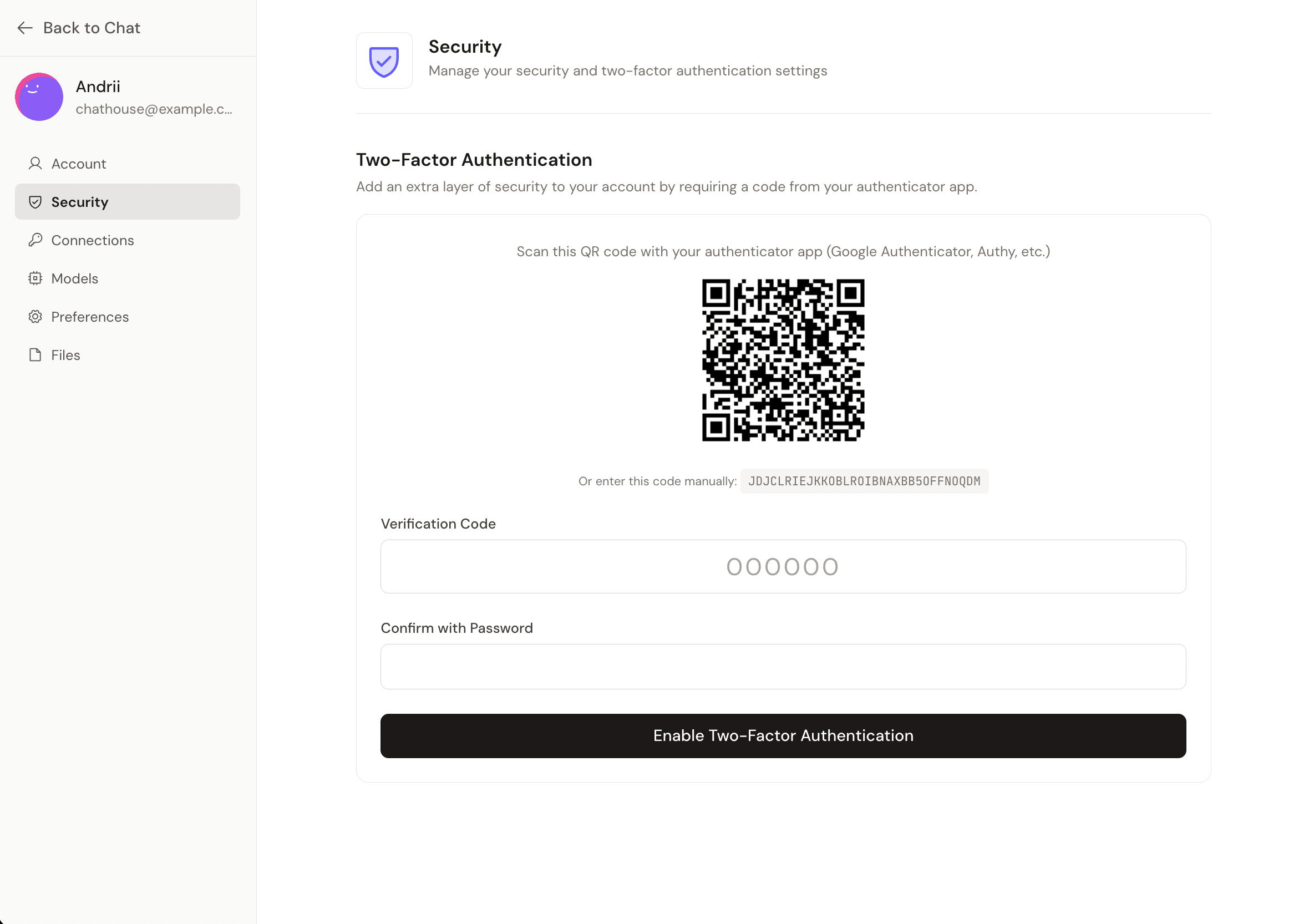
Scan the QR code
Open your authenticator app (Google Authenticator, Authy, 1Password, or any TOTP-compatible app) and scan the QR code displayed on screen.
If you can't scan the QR code, click the manual entry key link to reveal a text code you can enter into your authenticator app manually.
Verify the code
Enter the 6-digit code displayed in your authenticator app into the verification field.
Confirm with your password
Enter your account password to confirm. Click Enable to activate 2FA.
Make sure to save a backup of your authenticator app's data. If you lose access to your authenticator app, you won't be able to log in.
Logging in with 2FA
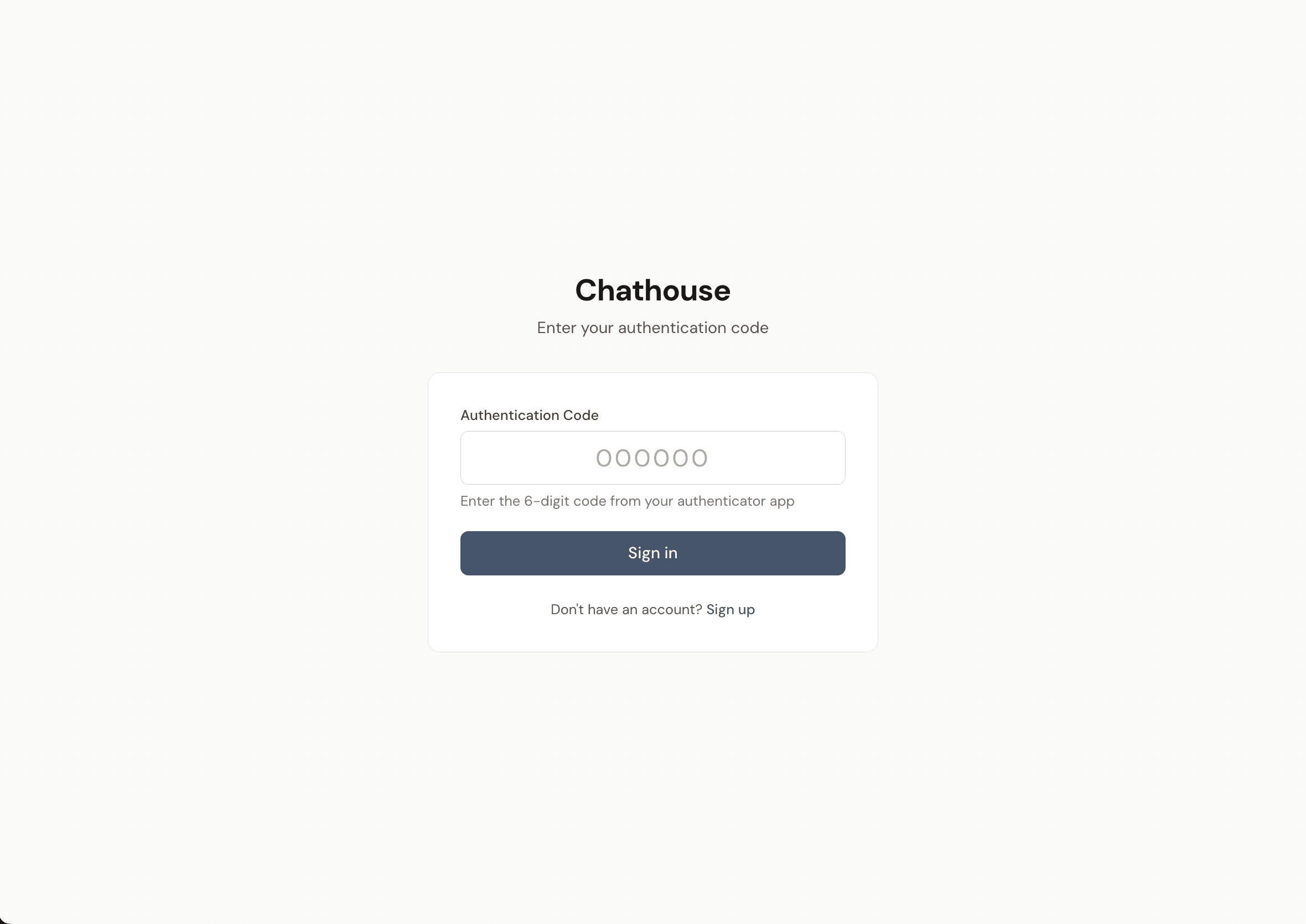
When 2FA is enabled, the login flow becomes a two-step process:
- Enter your email and password as usual
- Enter the 6-digit code from your authenticator app
Disabling 2FA
To disable 2FA, go to Settings > Security and expand the Disable two-factor authentication section. You'll need to provide:
- The current 6-digit code from your authenticator app
- Your account password
Click Disable 2FA to turn it off. You can re-enable it at any time by going through the setup process again.