Account & preferences
Manage your profile, change your password, and configure how Chathouse behaves.
The account and preferences settings let you personalize your Chathouse experience. Navigate to Settings > Account for profile settings or Settings > Preferences for application behavior.
Profile
Avatar
Upload a profile picture by clicking on your avatar in Settings > Account. Supported formats are JPEG, PNG, GIF, and WebP, with a maximum size of 5 MB.
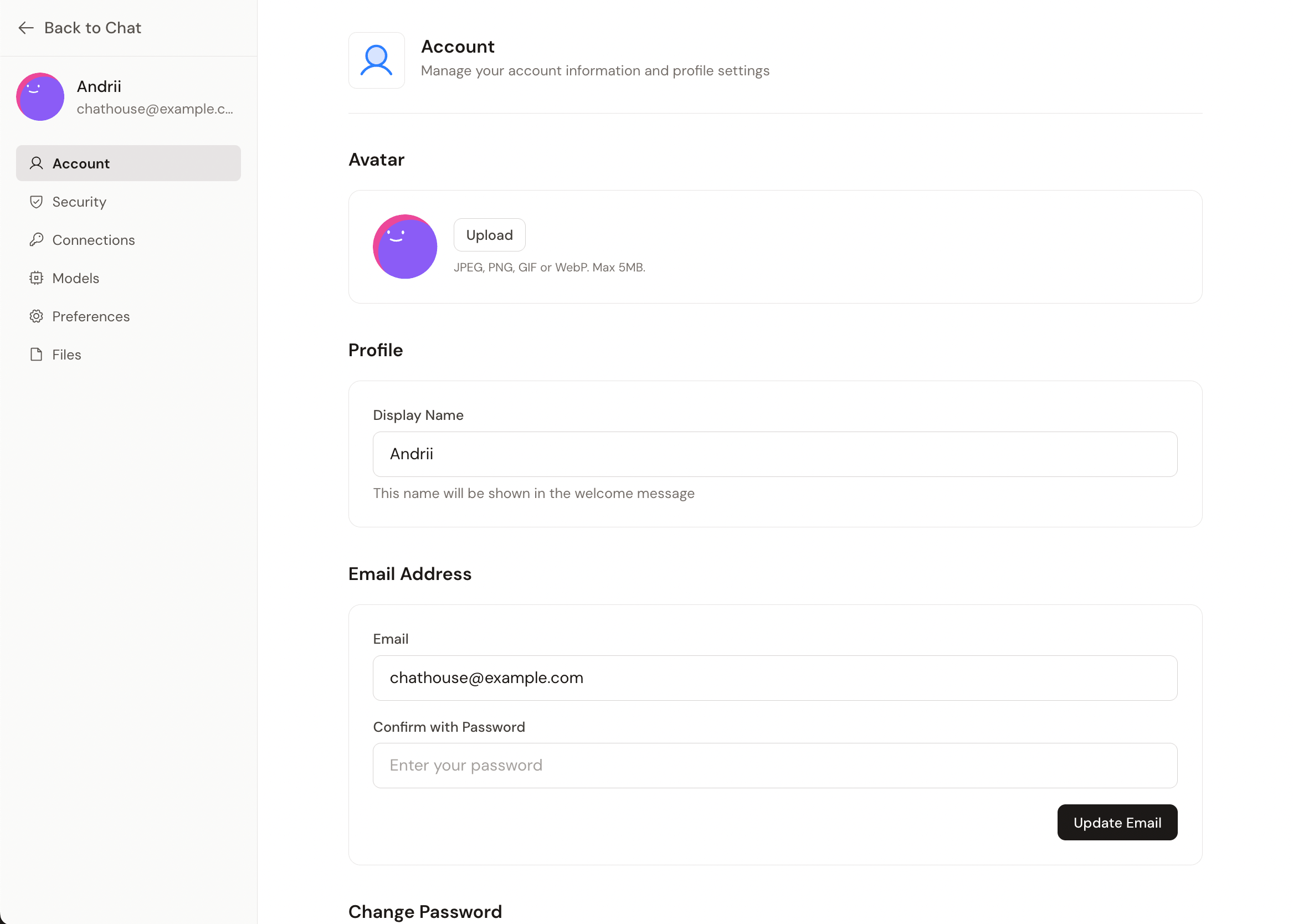
If you don't upload an avatar, Chathouse generates a unique one for you automatically based on your name.
To remove your avatar, click the Remove button below it and confirm.
Display name
Your display name appears in the chat greeting and on shared conversations. Enter a name in the display name field — it saves automatically when you click away.
Changing your email
To update your email address, enter the new email in the email field under Settings > Account. You'll need to enter your current password to confirm the change.
Changing your password
Under Settings > Account, fill in the password change form:
- Enter your current password
- Enter your new password (minimum 8 characters)
- Confirm the new password
- Click Save
If you've forgotten your current password, use the Forgot password link on the login page to receive a password reset email (requires SMTP to be configured).
Preferences
Navigate to Settings > Preferences to configure how Chathouse behaves.
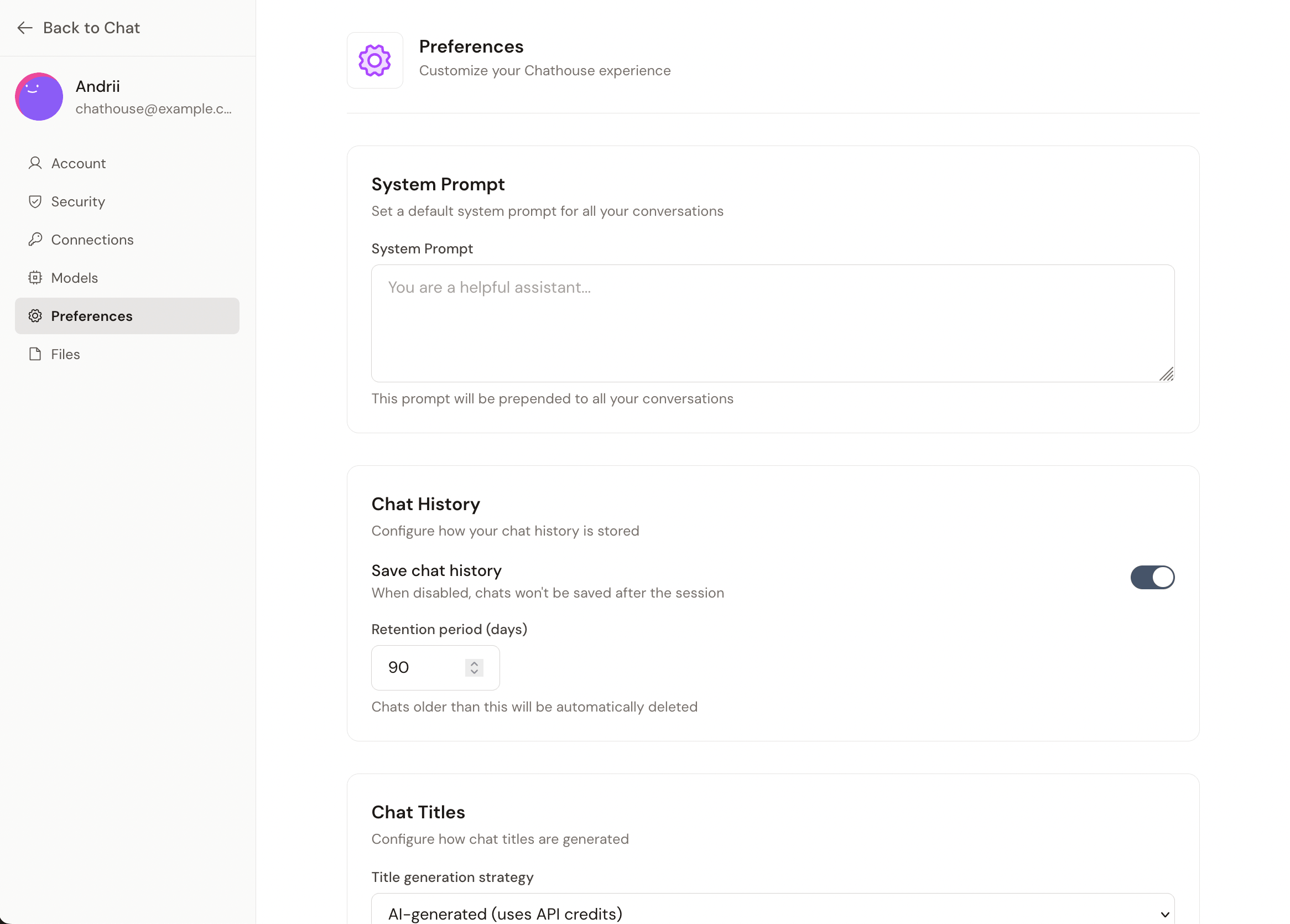
System prompt
Set a default system prompt that's prepended to every new conversation. This is useful for setting a consistent tone or giving the AI standing instructions (e.g., "Always respond concisely" or "You are a helpful coding assistant").
The field saves automatically when you click away.
Chat history
Toggle whether your conversations are saved. When disabled, new chats won't be persisted after you leave them (similar to temporary chats, but applied globally).
Chat retention
Set how many days your chats are retained before being automatically cleaned up. The default is 90 days, and you can set it anywhere from 1 to 365 days.
Title generation
Choose how chat titles are generated:
| Option | Description |
|---|---|
| AI-generated | Uses a lightweight AI model to generate a descriptive title based on the conversation. This uses a small amount of API credits. |
| First characters | Uses the first few characters of your first message as the title. Free, but less descriptive. |
AI-generated titles require at least one connected provider. If no providers are connected, this option will be disabled.
Admin settings
If you're the instance administrator (the first user who registered), you'll see an additional Admin Settings section on the Preferences page.
Registration
Toggle whether new users can register on your Chathouse instance. After your account is created, registration is automatically closed. You can re-open it here if you want to invite others to use your instance.