Managing models
Enable, disable, and organize the AI models available in your chat.
After connecting your AI providers, Chathouse fetches the list of available models from each one. The Models settings page lets you control which models appear in the chat model selector and organize them for quick access.
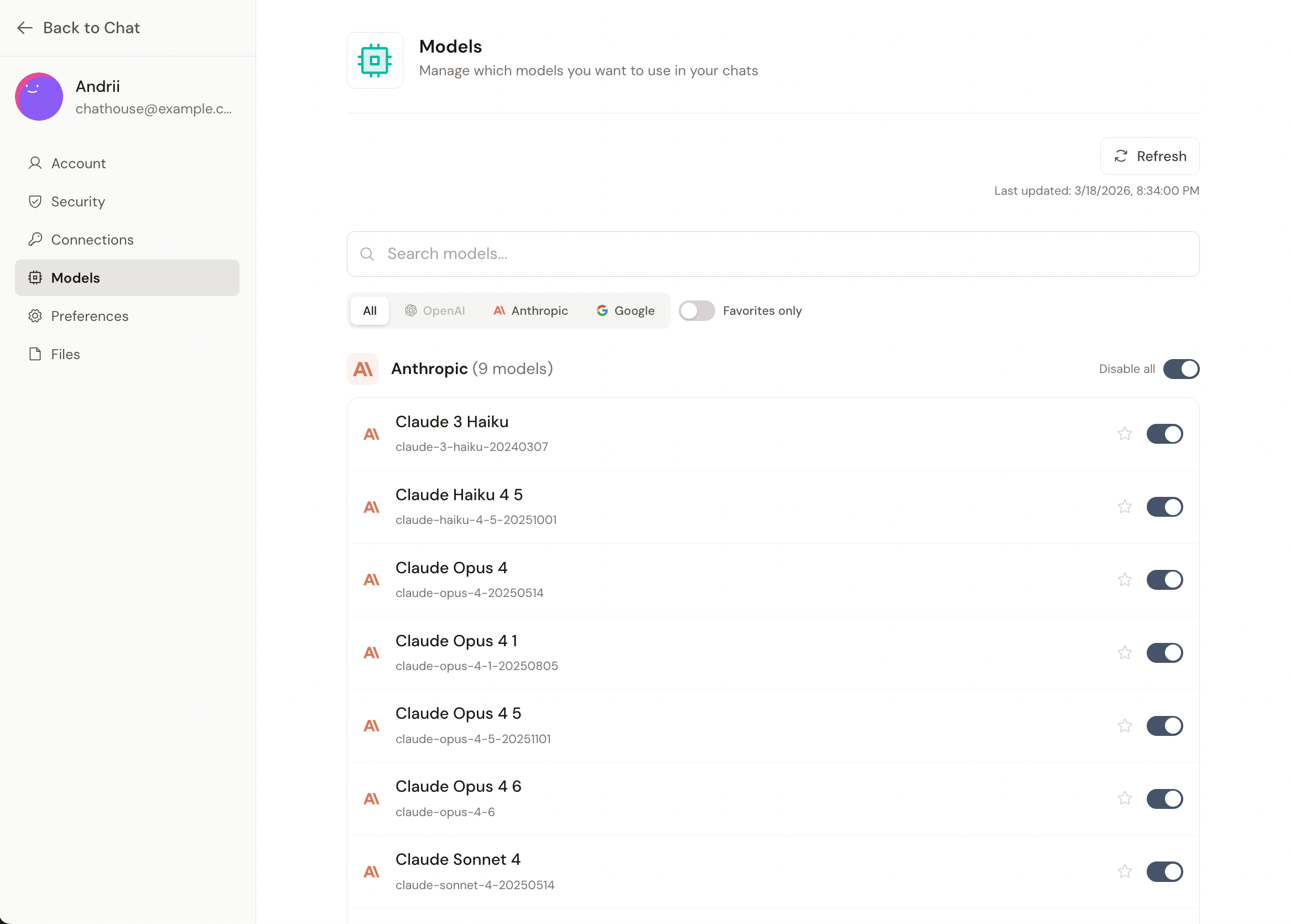
Navigate to Settings > Models to manage your models.
Enabling and disabling models
Each model has a toggle switch. Only enabled models will appear in the chat model selector. You can also use the Enable all / Disable all toggle at the top of each provider section to bulk-toggle an entire provider's models.
Favorite models
Click the star icon next to any model to add it to your Favorites. Favorited models appear in the dedicated Favorites tab in the chat model selector, making them quick to access without browsing through provider tabs.
You can also star/unstar models directly from the chat model selector without visiting the settings page.
Searching and filtering
Use the search bar at the top to filter models by name or ID.
You can also filter by provider using the tab bar (All, OpenAI, Anthropic, Google) or toggle the Show only favorites switch to see just your starred models.
Refreshing models
When a provider releases new models, click the Refresh button to re-fetch the latest model list from all connected providers. The button will spin while the refresh is in progress.
Context window
Each model displays its context window size as a badge (e.g., 128K, 200K). This tells you how much conversation history and content the model can process in a single request.