Files & uploads
Upload, preview, and manage files attached to your conversations.
Chathouse supports file uploads so you can share documents, images, and other files with the AI for processing. All files are stored on your server — nothing is sent to third parties beyond what's needed for the AI to process them.
Uploading files
There are two ways to attach files to a conversation:
- From chat — click the plus icon in the chat input and select Add files or photos, or drag and drop files directly into the chat input area
- From Settings — navigate to Settings > Files to see and manage all your uploaded files
Supported formats
| Type | Formats |
|---|---|
| Images | JPEG, PNG, GIF, WebP |
| Documents | |
| Text | Plain text, CSV, Markdown, JSON |
The maximum file size is 20 MB per file.
Previewing files
Image files display as thumbnails in the chat. Click on any image thumbnail to open a full-size preview in a modal.
For non-image files, you'll see the filename and a link to open or download the file.
Managing files
Navigate to Settings > Files to see all your uploaded files in one place.
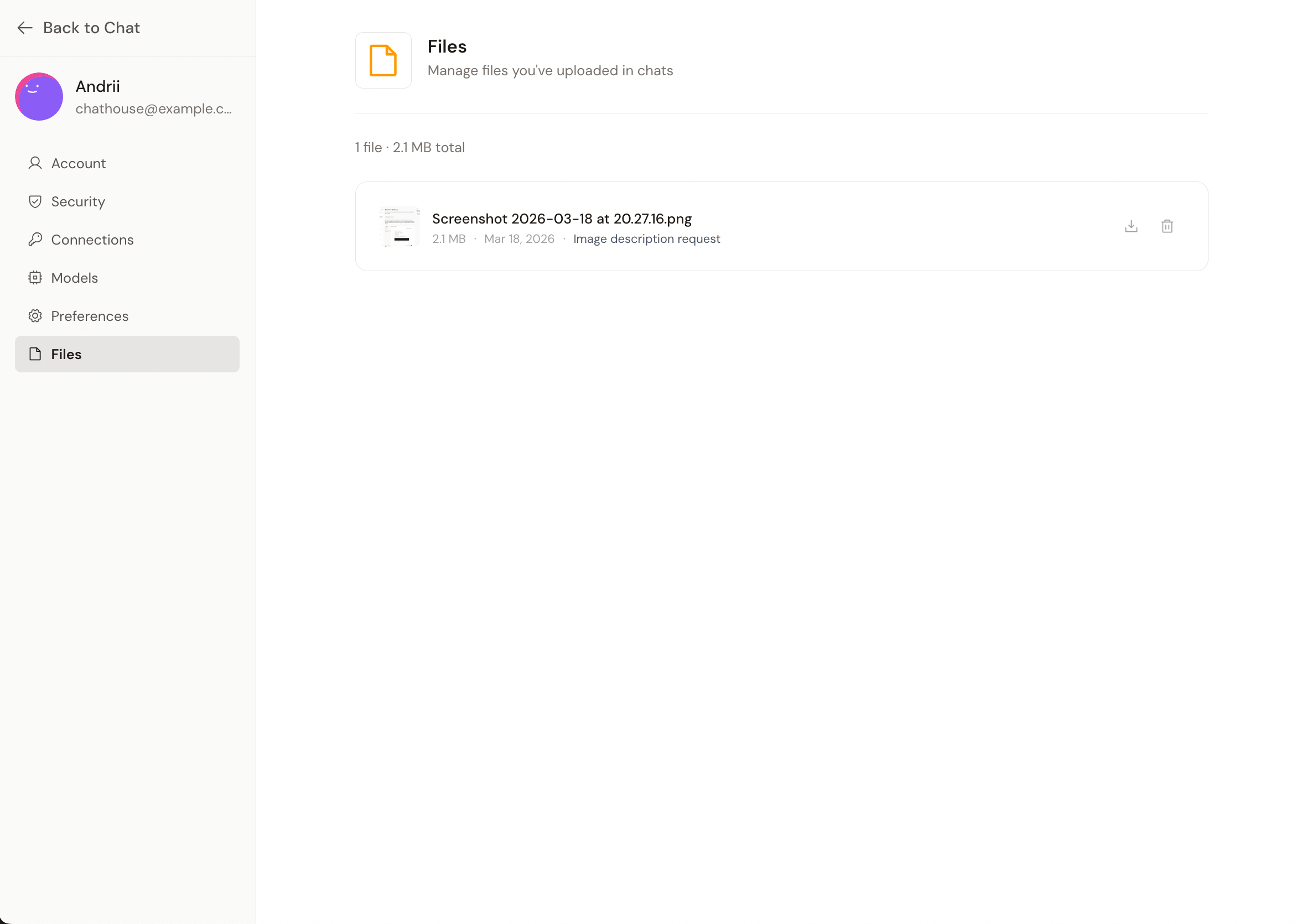
Each file card shows:
- A thumbnail preview (for images)
- The filename and file size
- Upload date
- Which chat the file is linked to (if any)
Downloading files
Click the download icon on any file card to download it.
Deleting files
Click the trash icon on a file card and confirm the deletion. Deleted files are permanently removed from your server.
Storage overview
At the top of the files page, you'll see a summary showing the total number of files and their combined size.